Skip to content
Adding an Image into a Page
Step 1. Upload Image to the media library
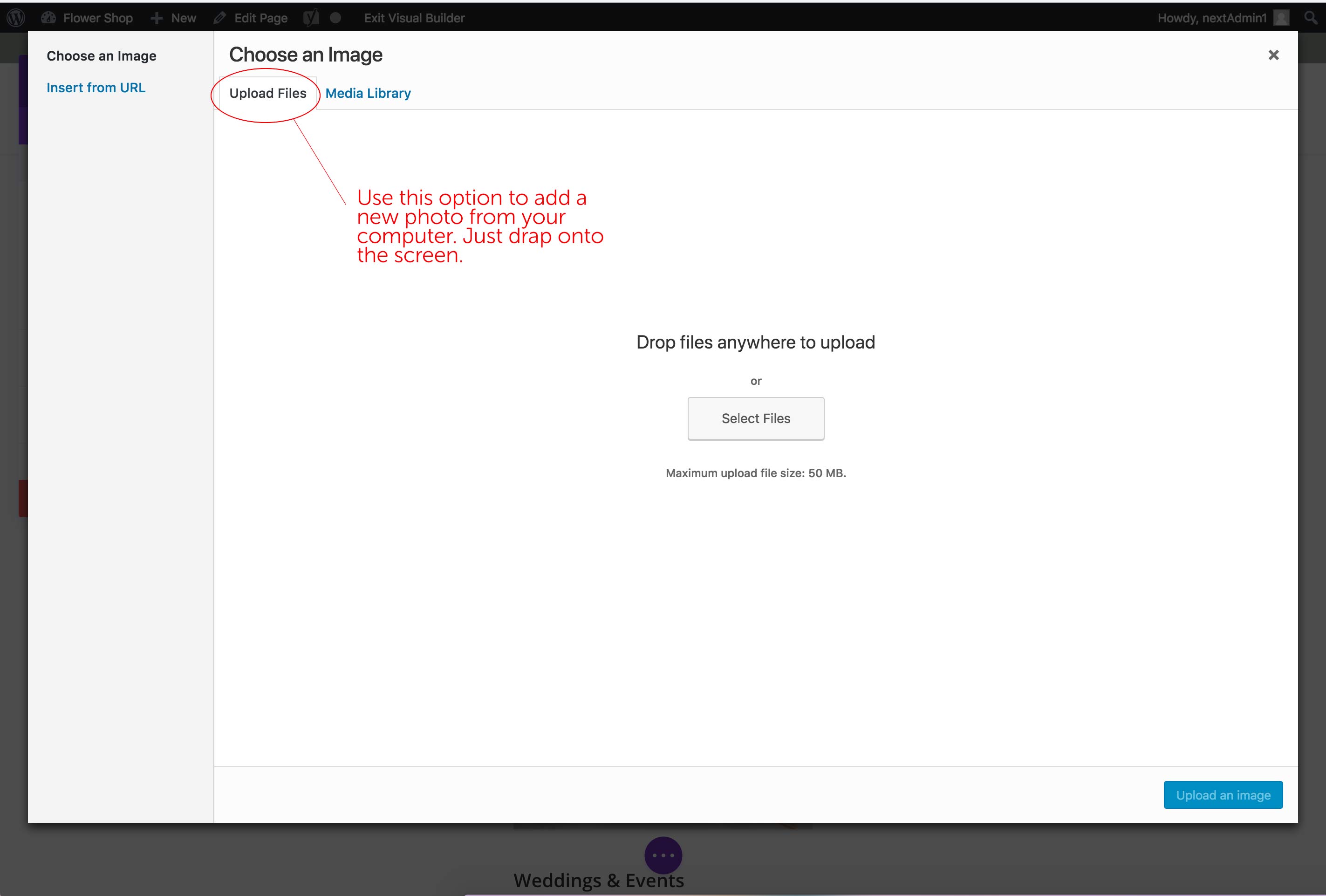
Step 2. Go to page and enable the Visual Builder
Step 3. Choose where you would like the new photo and click the plus sign labeled ‘Add New Module.’

Step 4. When the ‘Insert Module’ box pops up, scroll down to find ‘Image.’

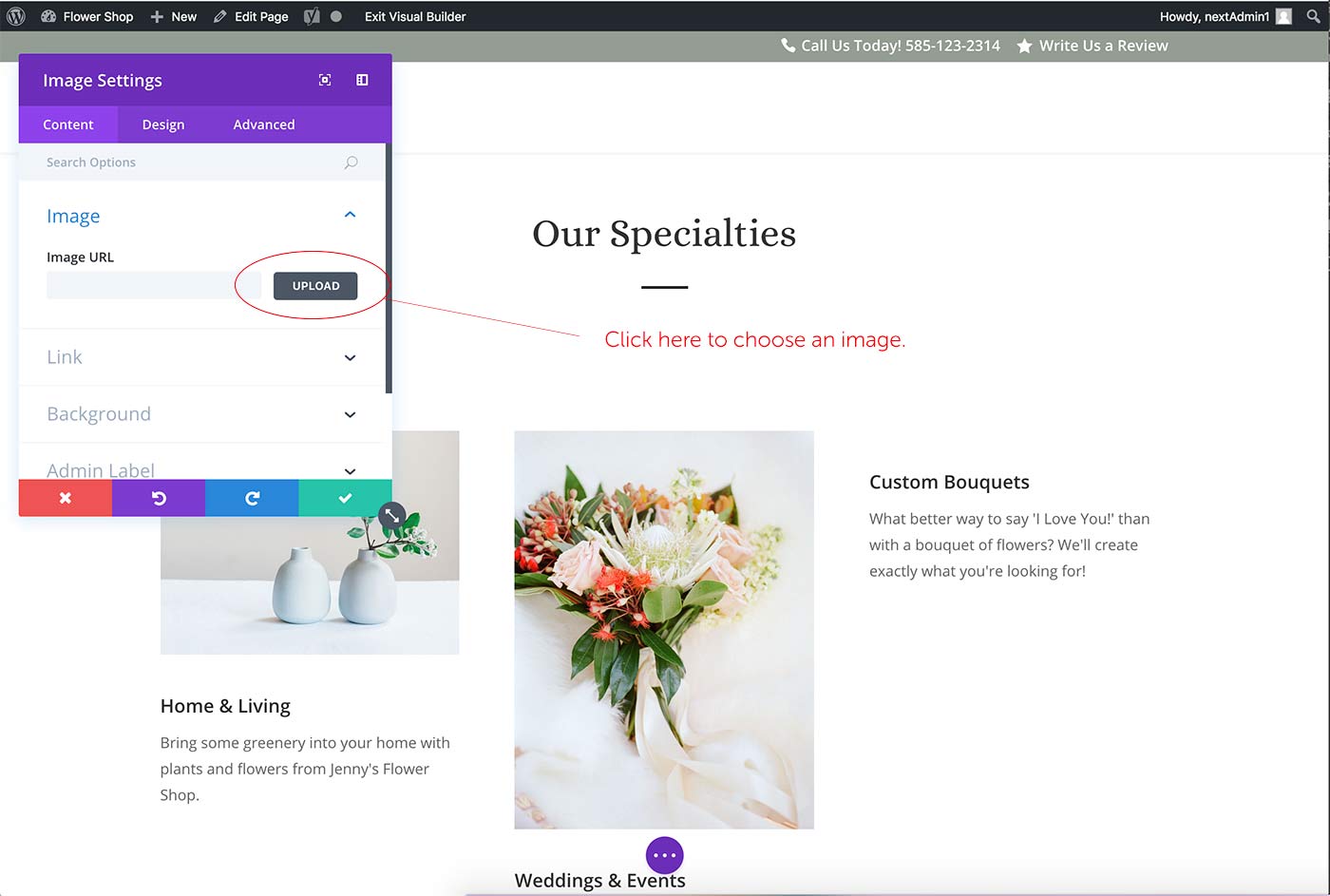
Step 5. When the ‘Image Settings’ box pops up, click ‘Upload’ to choose the image to insert.
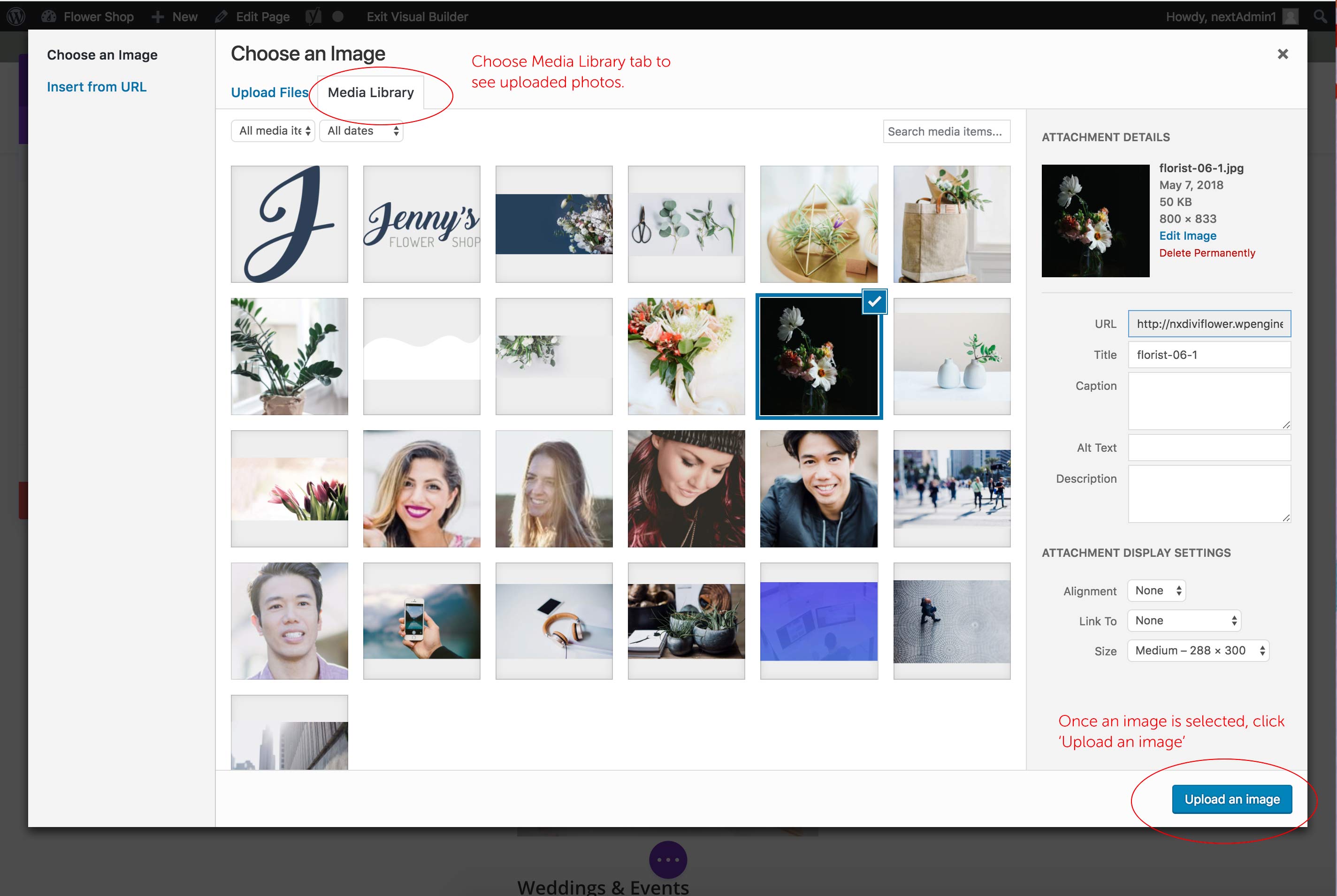
Step 6. Choose an image from the media library.
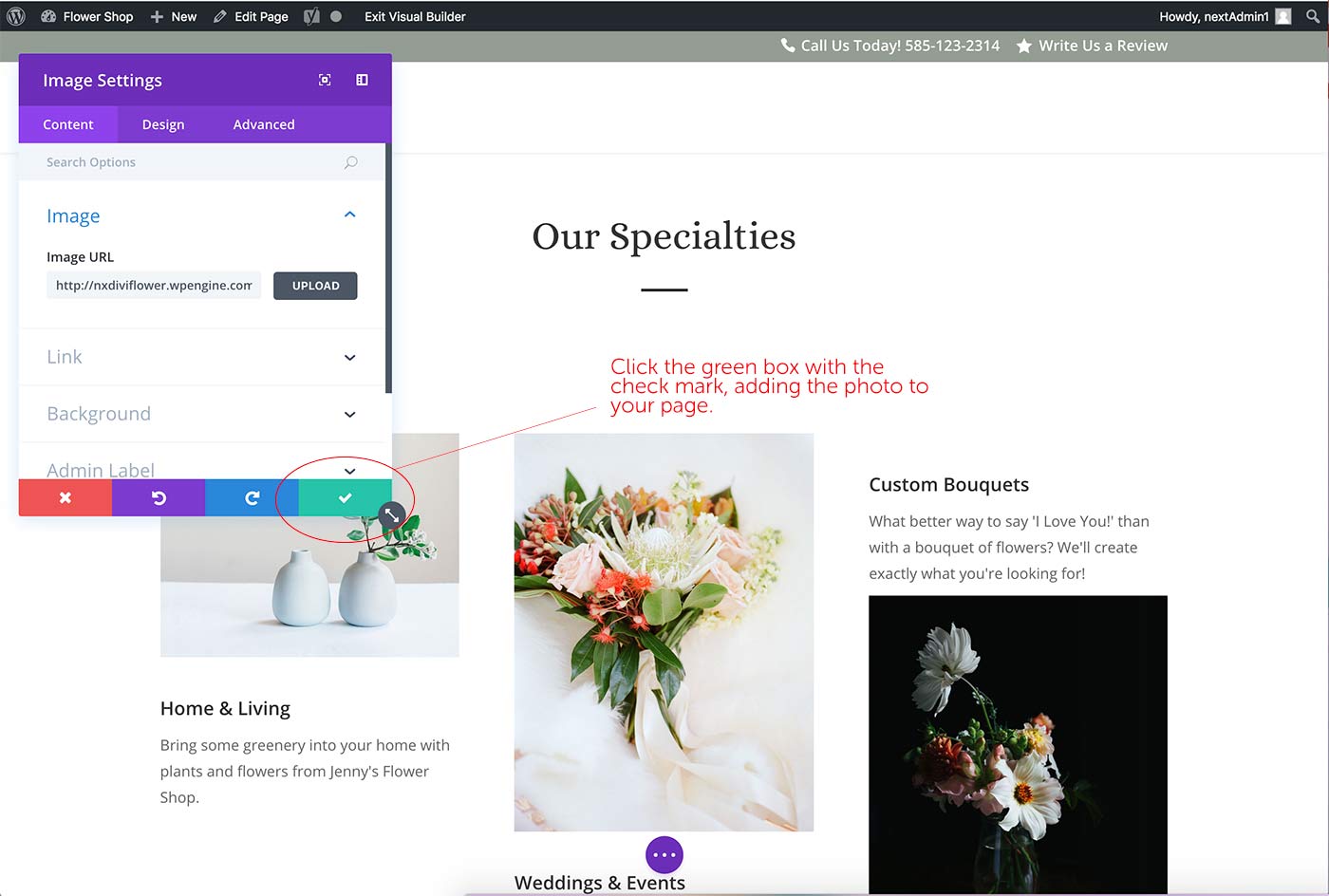
Step 7. Once you choose an image, the ‘Image Settings’ box will reappear. Click the green box with the check mark to finish the upload.
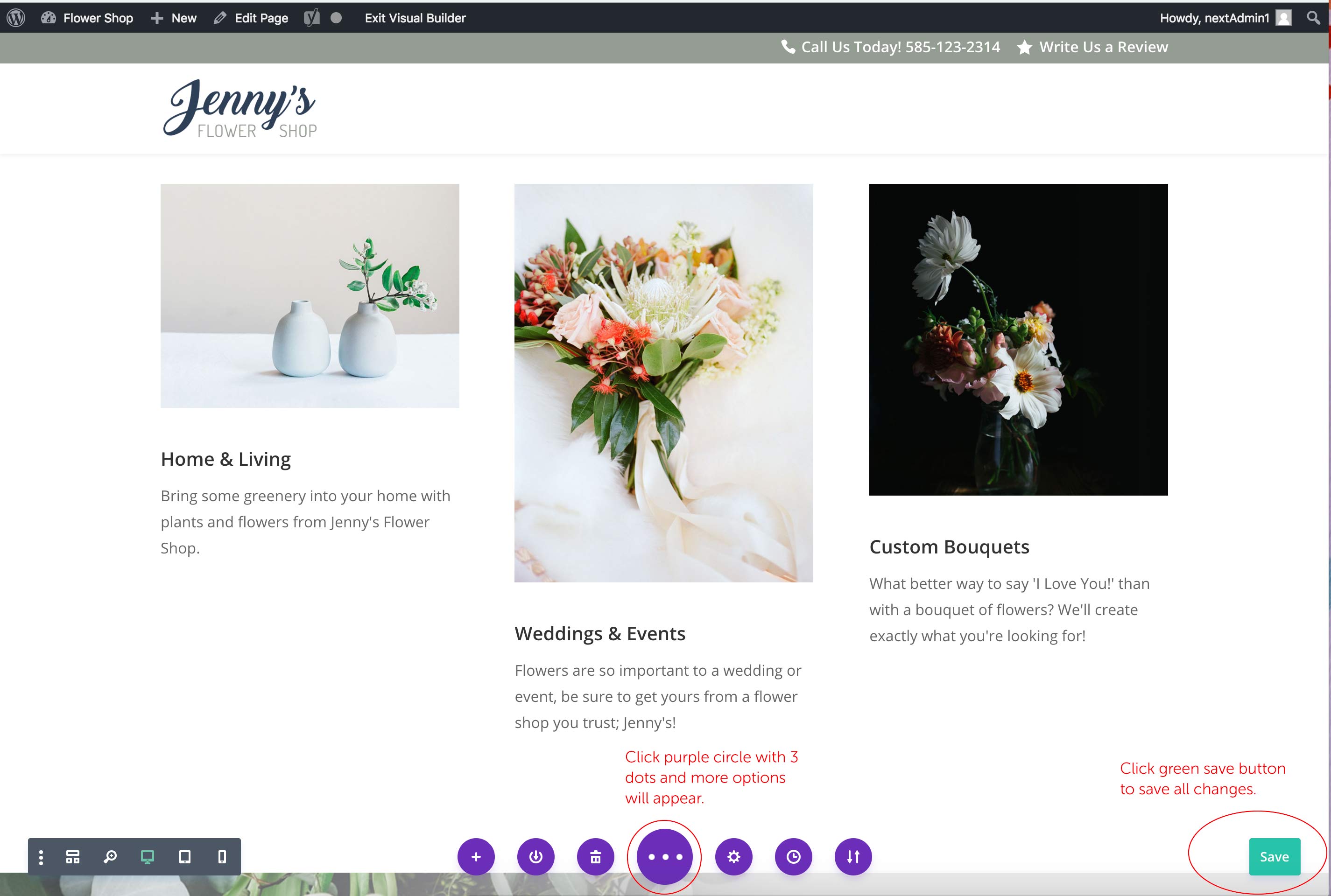
Step 8. CLick the purple circle with 3 dots to reveal more options and click ‘Save’ in the lower right-hand corner
Scroll Up
